
PocketDesk
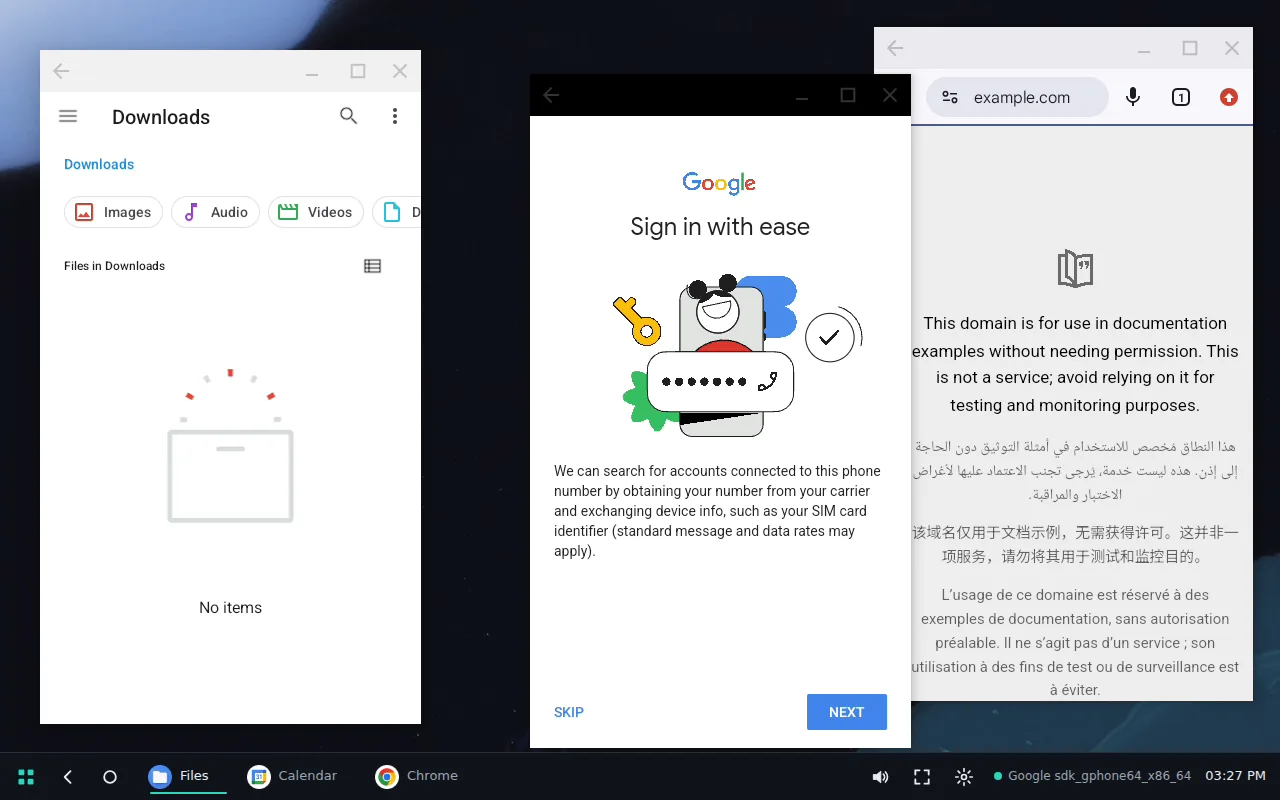
A real desktop from your Android phone, on any screen with a browser. Apps in windows you move and resize, your mouse and keyboard, no DeX and no video-out cable needed.
Why
Samsung DeX and Android's desktop mode need a phone that can send video out over USB-C. Most mid-range phones can't (the Galaxy M53 this was built for has no video out at all), and plain screen mirroring only copies the phone's portrait screen. PocketDesk gives the phone a second, desktop-sized screen of its own and shows it wherever there is a browser.
What it does
What you need
- An Android phone with Android 11 or newer. Developer options on (tap Build number seven times).
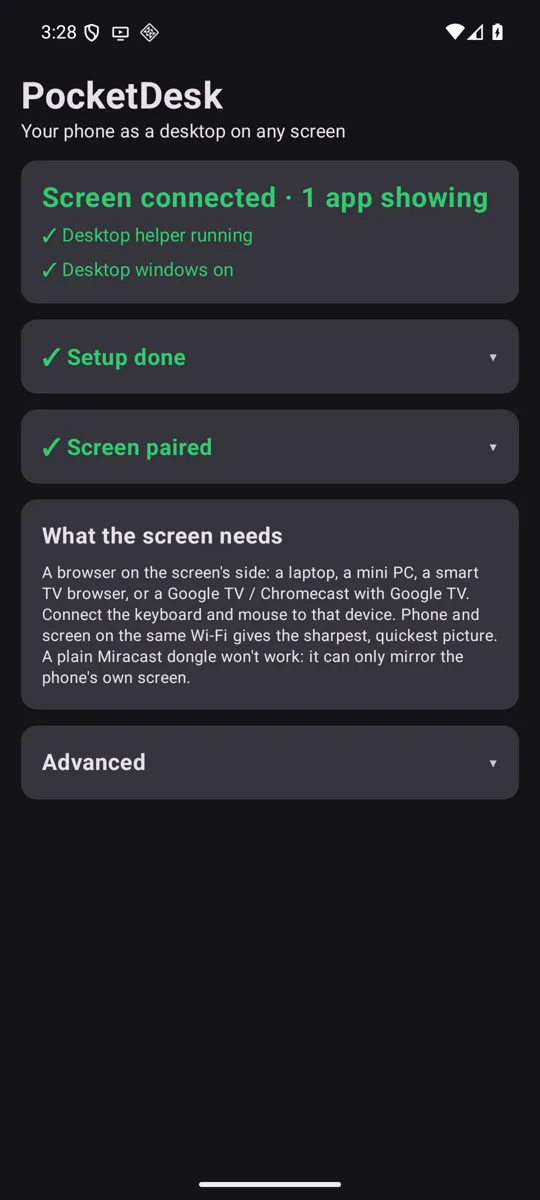
- A screen with a current browser: a laptop, a mini PC, a smart TV's browser, or a Google TV / Chromecast with Google TV. Plug the keyboard and mouse into that device.
- Phone and screen on the same Wi-Fi for the sharpest, quickest picture.
A plain Miracast or "screen mirroring" dongle won't work: it can only copy the phone's own screen, not show a second one.
Setup (once, about five minutes)
- Install PocketDesk from the download page.
- Desktop helper: in PocketDesk tap Pair, then in Wireless debugging tap Pair device with pairing code and type the code into the PocketDesk notification. That's all: no computer needed, and it starts again by itself after every restart once the phone is on Wi-Fi. (Already using Shizuku? That works too.)
- Desktop windows: tap Turn on, then restart the phone once.
- On the screen: open
pocketdesk.outsmartis.devand type the 6-digit code the phone shows. The screen remembers the phone from then on.
How it works
The helper normally needs Shizuku, which has to be started again after every restart. PocketDesk instead pairs with the phone's own Wireless debugging once, grants itself the right to switch it on and off, and at boot starts the helper, then switches Wireless debugging off again.
Limits
- Starting by itself after a restart needs the phone connected to a Wi-Fi network (Wireless debugging only runs on Wi-Fi).
- Apps that block screenshots (banking, some video apps) show black.
- The clipboard goes one way: from the computer to the phone.
- Tested on Android 16. Samsung's One UI is being tested now.
PocketDesk is a personal project by André Conde, built on CarMirror. Source on GitHub.